
iOS SDK installation
There are three ways to install the Survicate Mobile SDK in the iOS applications:
Installing as Swift Package
The recommended installation method.
- Once your iOS application project is ready, open it in the Xcode and select your project’s Package Dependencies tab
- Copy the Survicate SDK Swift package repository URL
https://github.com/Survicate/survicate-ios-sdkinto the search field - Under the Dependency Rule, select the version of your preference.
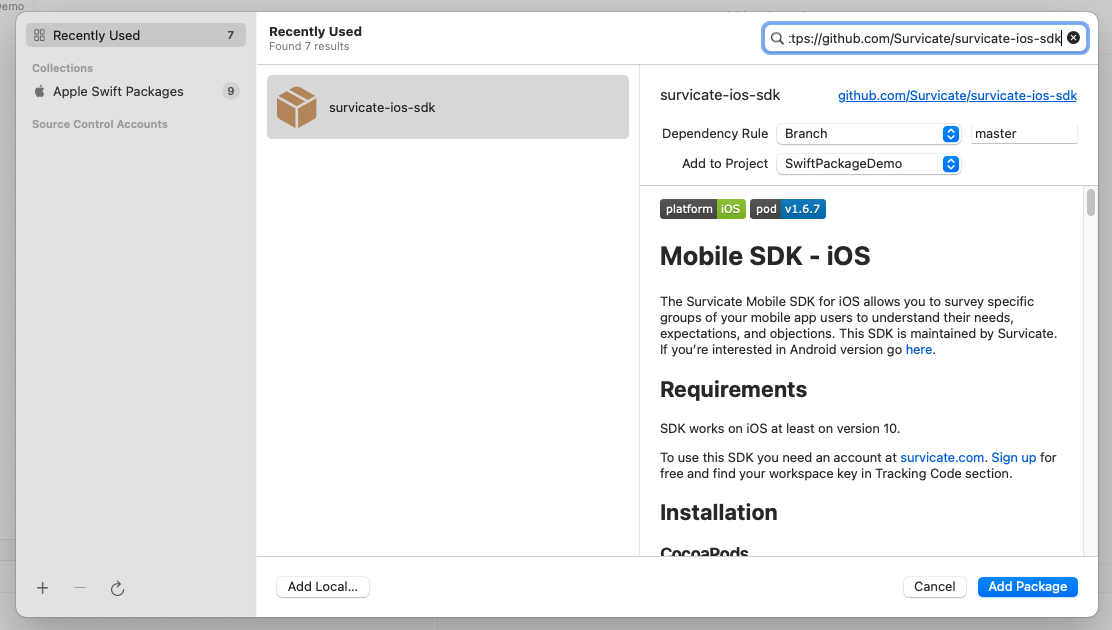
- After the package download completes, select Add Package.
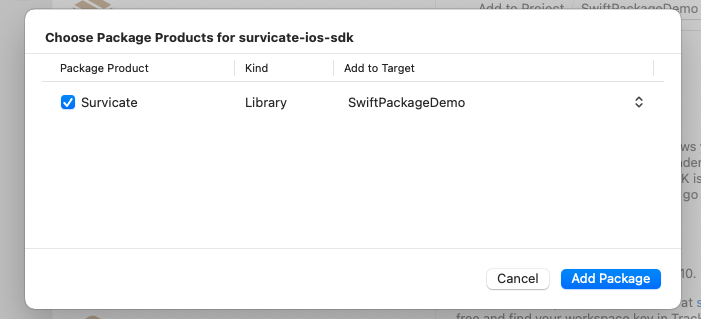
Survicate SDK should now be listed under Swift Package Dependencies in the Xcode Project Navigator.
Installing using CocoaPods
Define pod in your Podfile and run pod install.
Installing manually
- Download and extract the Survicate for iOS
- Drag Survicate.framework into your project. Make sure "Copy items if needed" is selected and click Finish.
- In the target settings for your app, set the Survicate.framework to “Embed & Sign”. You'll find it in the “Frameworks, Libraries, and Embedded Content” section of the “General” tab.